Showing posts with label Timesaver. Show all posts

4.13.2011

Quick Message Templates Using Mail Signatures

Nearly every person email for a company or business has a signature at the end of each of their emails. They cut down on time, and prevent typing errors by using a saved snippet of text that is automatically appended to the end of every email message.

Quick Access (Right Click) *

Most mail applications like Outlook, Apple Mail, Thunderbird allow us to have multiple signatures, letting users have a business signature, and possibly a more personal signature with a quote or detailed contact information. Additionally, you can save yourself a lot of effort by converting frequently used mail templates into signatures.


Creating a Signature*
Instead of having to search for the last message you sent and copy and paste text into the new message, or having to have the actual template file on your computer,you can simply create a new signature that includes both the template text, as well as your standard signature. This way you can right click your signature and instantly have access to all your templates, only needing to fill in dynamic information like a tracking number or name.
*Examples shown are in Outlook. Feature is also supported in other mentioned applications

Read More...

2.06.2011

Send & Receive Unlimited Faxes For Free

While most mass communication is doe through email, sometimes you still have to revert to using a fax machine. While fax machines are space consuming, and typically require some type of phone service, more and more web fax services are coming up, and allowing users to use the basic service for free.

By using a combination of popular service eFax, and the lesser known fax, but highly popular SIP service, SIPGate, you can now send and receive unlimited fax messages with your very own personal fax number (for free).

Head on over to eFax and sign up for a free account. Then sign up for the totally free sipgate one package with SIPGate.

After signing up for these 2 services you should have 2 different fax numbers. One from each service. Fortunately SIPGate will let us change our outgoing caller ID number for SIP calls or for faxes. All we will worry about now is the fax part.

By now you also should have received an email from eFax with your fax number.


Take your eFax number, and use that for the outgoing caller ID. This way when you send a fax with SIPgate, the return number will show as your eFax number which has the ability to receive faxes. SIPGate's free account is only outgoing, which is why we have to have both services.

Once you are logged into your SIPGate account, go to the top right corner and click the settings button. From there you will have the option to click, "Fax" on the left hand sidebar; where you will the below screen.


While this is not the most convenient method if you are a heavy fax user. This is plenty sufficient for the occasional fax user who doesn't want to have to buy a fax machine or pay for service on it. You are notified of incoming faxes via email and or text message, and after installing the desktop eFax service, can use another plugin such as PrimoPDF to turn that fax into a PDF.

Read More...

9.25.2010

Access Built In Terminal Help (Mac)


While using Terminal and trying to figure out the usage of a command there is always the option to use the man command. Simply type man and then the command you are stuck on.Example: man sudo which would result in the following as seen below. To get out of the feature press the "Q" key. This is very useful if you are working offline, or don't want to spend a ton of time researching a command and the usage of it.


Read More...

1.07.2009

Display Your Facebook Status, Pictures, or Info & More Anywhere

Just the other day I found out that Facebook offered badges. What is especially great about the Facebook badges is that you only have to put what you want on there. You don't even have to have it show your name, but you can also go so far as to have it show all your screen names and most recent photos. You can create your own badges by going to Facebook.com/badges.php.


Creating a Badge


Possible items for you custom badge.


The badges can be horizontal or vertical, and can be displayed using JavaScript, or as an image. What this means is that you can even use this on message boards or other sites that don't let you use custom JavaScript on the page itself.

This is especially useful when it comes to places like MySpace, Wordpress, email signatures, message boards; where you cannot post anything or than images or regular links. I use my badge on sites where I usually do not use or update (MySpace), but still want to keep people updated.


My Own Facebook Badge
Michael's Facebook Profile

Read More...

12.31.2008

Uploading With iPhoto (Part 1)

I am sure some of you are using iPhoto to organize your holiday photos. One common complaint is the lack of ease when it comes to uploading something from your iPhoto library. This video will show you a couple of time saving tricks that make it easy to upload photos to any website or location.

Read More...

9.07.2008

Get "My Number" to Show Up in iTunes or iPhone Contact List

Having ported my number from Verizon to my iPhone I was not able to see my number in iTunes, the top of the contact list on my phone, or anywhere else where your number would otherwise be stored. After much research, I finally came to a solution that was super easy and actually worked. It literally took me under 5 minutes, and nothing but my own iPhone. Just unplug your iPhone from the computer and give AT&T a call.


Call Customer Care (If possible from another line) at:

(800) 331-0500

or

(866) 241-6567 (TTY)

Here is what to say:

"I had my number ported to my iPhone, and it has been over 36 hours but my own number is still not showing up in iTunes or above my contact list on my iPhone. I was told to call you and ask to resend the OTA (Over the Air) programing to my iPhone because I don't think the SIM card was properly programmed."

Once the send it check to see if you can see the number on your iPhone and then if so go ahead and hang up with AT&T because the OTA programing worked. The number will not show up in iTunes until your restart your iPhone, so go ahead turn your iPhone off and on and then you are done!

Before OTA Programing


After OTA Programing

Read More...

8.15.2008

Open In Finder Shortcut (Stacks)

After discovering the command+click shortcut in spotlight, I decided to try this on a couple other things. One of those was Stacks. If you have a cluttered stacks folder it may be easier to click on the stack and choose "Open In Finder". If you do this a lot it gets annoying to have to click on the stack and then click again to open the folder in Finder. Next time try holding down the command key while clicking on a stack.

Read More...

8.12.2008

Use Spotlight to Open Containing Folders

I use spotlight every day and all the time, it is much faster than having to find the app in the application folder or sort through my hierarchy of documents. The other day I just realized that if you hold down the command key while clicking on an item it will open up the containing folder without launching or opening the actual file. This trick also applies for stacks, as well as anything else that is in your dock.


Personally, I have found this especially useful when trying to remove an app because it is much faster for spotlight to point out the file for me rather than having to browse through a folder. It is also great when you need to pull up some files but don't remember what the name of the folder they are in, and or only remember one of the names from a file in that folder.

Read More...

7.22.2008

Use Lexy to Instantly Hear Podcast on Your Phone

Phone service Lexy makes is super simple to get your podcast on the go, you don't even need an iPod for that matter. All you need is a phone, and a computer for the 1 time quick setup. I have found this usefull for those times when there is something you saw but did not get to sync up to your iPod and listen to. You can have multiple subscriptions that can easily be added to your playlist from lexy.com. From what I have seen the clips are usually around 60 seconds. To listen to the clips you added to your playlist just call 415-692-4933 and listen.


Read More...

12.09.2007

Quick Image Editing: FastStone

As much as I enjoy all of the features of Photoshop, it is a little slow on my laptop, and lacks some of the features I have in Lightroom such as flash gallery creation, although from what I have seen of CS3, this feature has been implemented. One way to get around this little annoyance is by using software by FastStone. This software is very light and just as powerful when it comes down to the basics of editing and creation. It is also much easier for some of us who struggle to find what we are looking for in the Photoshop menu as we attempt something new. FastStone offers 2 programs that can be used to edit photos. One can edit images in bulk and the other has extra features. Why would you want to edit in bulk? Simply because it is way easier to automate watermarks or resizing in bulk rather than one at a time.


FastStone File Size Resizer: This is a great tool for bulk editing and for compressing pictures. Includes editing features such as cropping, changing the color, blur, sharpen, tags, format changes, color depth, markups, watermarks, and rotation.


FastStone Image Viewer: This multi purpose program is lite yet feature loaded, my favorite features include the creation of single file, executable slideshows with the ability to browse the files contained inside. What is great about this is that between this and autorun pro, you can easily create a photo disk to give to someone and make the slideshow start automatically. I personally use this method for those who I am giving a photo disk and know they will need help viewing a slideshow of the pictures. The other cool thing about this is that you can choose what EXIF data you want to be displayed and also add some music for your presentation. Finally this also create thumbnail pages of your pictures in a single TIFF or PDF and edit your pictures with features of File Size Resizer as well as creation of new images such as b y the integrated screenshot feature, but cannot batch edit/resize.

Read More...

11.11.2007

Restore Your iPhone to Working Order and Without Loosing Personal Information In 4 Easy Steps

If you ever use any third party applications you may encounter a problem down the road that may just cause you to be "locked out of your iPhone" or "stuck in a loop of rebooting". If you were like me, and you used the AppTapp installer to install stuff from the iPhone itself then it may have been a while since your last sync and backup from iTunes. Here is what to do to restore your iPhone to working order and restore all of your information.


1. Open iTunes; go to Edit>Preferences>iPhone (Edit>Preferences>Syncing for iTunes 7.5)
Choose "Reset Sync History", and then click OK.

2. Plug in your iPhone and in the Summary tab click"Restore". After clicking you may be prompted to create a backup. Even if you already have a backup let iTunes create the backup to make sure it is up to date.

3. Continue with the restore, you may have to wait for iTunes to download the firmware it is going to install. This firmware will be the latest firmware available. Once this is done iTunes will take care of the rest.

4. Afterwards, your iPhone will once again appear in iTunes, when prompted to either or Restore to Backup, choose the Restore to Backup. Once again, the restore process will begin, but this time when it is done, sync your iPhone to get all your synced media back on to your iPhone. Once this is done you are ready to go!


FAQ:

How long does this take?
This generally takes about 15-25 minutes for the restore process itself but can take longer depending on how long it takes for iTunes to download the firmware for your iPhone if it is not already, and is completely safe and very easy.

My iPhone keeps resetting or disconnecting itself.
Most likely it means you will or already have gotten an error while attempting to restore. Just wait until iTunes displays your iPhone again and then start the process over, this time it will start immediately as the firmware is already downloaded. You won't have to worry about the iPhone restarting once the restore process has began as it puts the iPhone into what is know as "Safe Disk Mode". During this mode, no firmware is loaded, and your iPhone is basically a slave to iTunes.

What does "Reset Sync History" do?
All this does is makes it as if iTunes has not yet synced with your iPhone. Use this when you have changed computers and have not yet synced personal information such as that as described above. Otherwise your iPhone may loose some information that is missing from your computer but on your iPhone such as contacts created on your iPhone. In other words this tells your computer not to erase anything from your iPhone because its not in the computer yet. Whenever possible always choose Merge so you can choose what information you want rather than replacing the wrong thing or getting duplicates of everything.

What does a backup contain?
A backup only backs up your personal information such as Calendar, Contacts, Notes, Preferences, Mail, Safari Bookmarks, History, and Cookies, and suprissingly, Pictures you took on your iPhone. Just to be safe always copy your pictures to your computer beforehand. If you have any third party applications they will be lost, but can be reinstalled later.

What is not backed up?
Songs, Music, Video, Podcast, Audiobooks...this will all be restored to you iPhone when you Sync.

What happens when I am done doing this?
Once your have completed all 4 steps, you can start using your iPhone and everything will be right where you left off. The only difference is that you will be missing the third party applications.

Read More...

10.12.2007

Let ChaCha Research For You...Free!

There are always those really annoying things you have to lookup, and forget to look them up until you have run out of time. Or it is something that has way to many results when you search, and none of them are relavent. ChaCha provides a great seach engine and live assistance. As they have grown increasingly popular you now do have to register to "Search With  a Guide", but registration is short and free. Most of the time you get some pretty good results. It also helps if you have your soudn turned on because you can hear when they either send you a message or a search result.

Read More...

9.03.2007

Select With Checkboxes

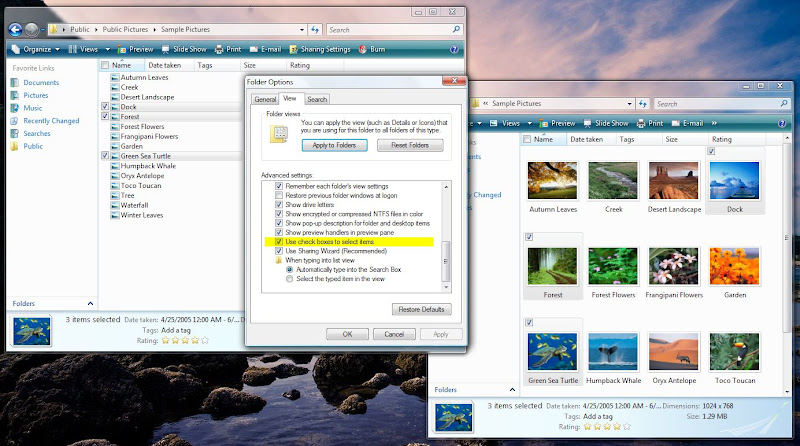
For Vista users this is a great tool. Not only can you use the CTRL + Click feature to select items, but you can aslo use checkboxes.

To enable this hidden feature: Click Start or press Win Key> Type and open Folder Options> Under the View tab scroll down to the bottom and check the box for Use check boxes to select items.

Read More...